

Creative work can place a surprising amount of pressure on a computer. Video editing, 3D rendering, animation, motion graphics, architectural visualization, and other demanding tasks often require more processing power, memory, and graphics performance than an everyday laptop can provide.
That can become a problem for freelancers, students, remote workers, and small creative teams that do not want to spend heavily on new hardware every few years.
Fortunately, upgrading your physical computer is not always the only solution. By working more efficiently, using remote resources, and choosing tools that reduce the strain on local hardware, creative professionals can handle demanding projects without immediately investing in an expensive workstation.
1. Use Cloud-Based Computing for Demanding Tasks
One of the most practical alternatives to buying a powerful computer is to move demanding workloads to remote hardware.
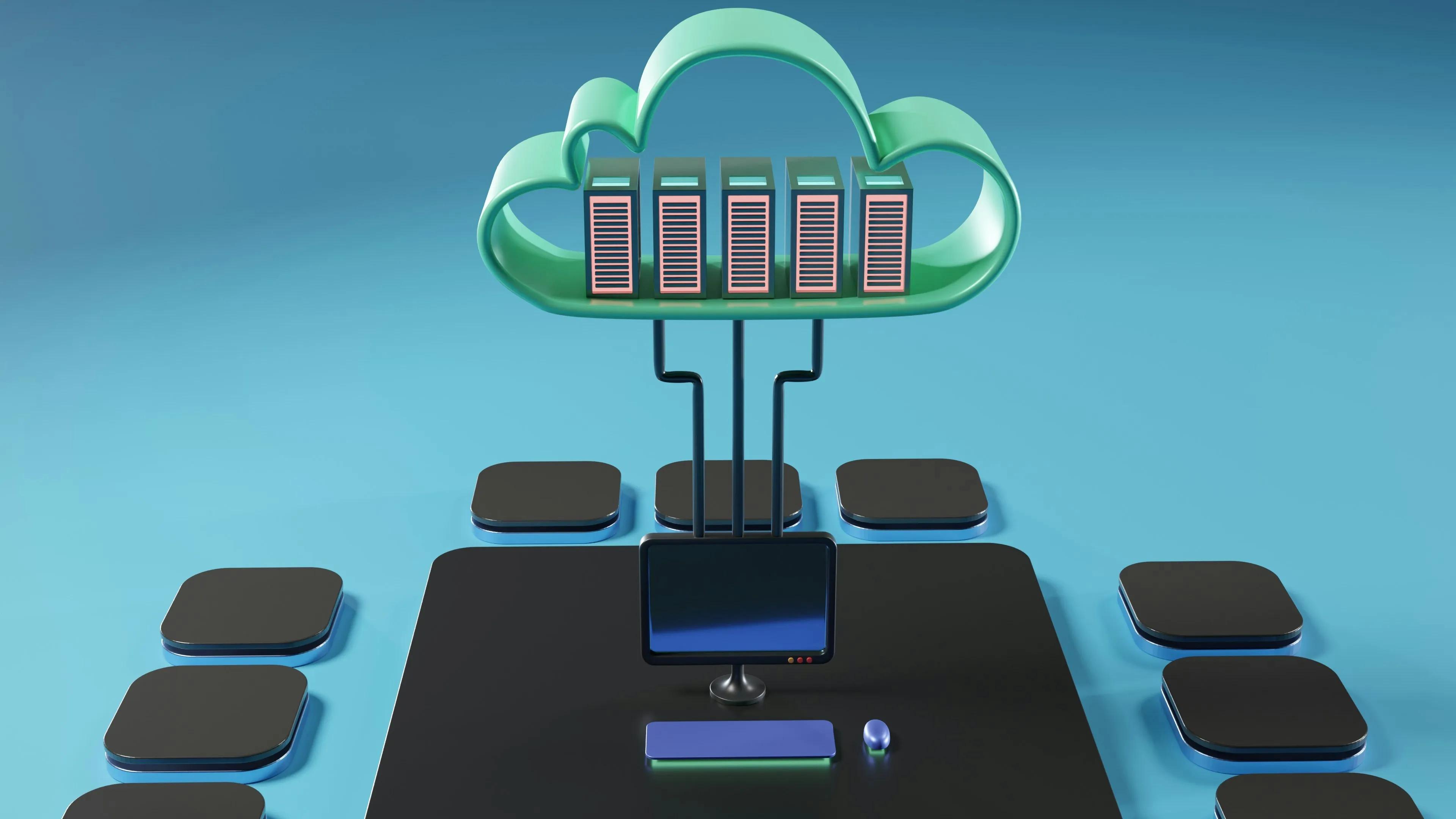
Cloud-based systems allow users to access higher-performance machines through the internet while continuing to work from a regular laptop or desktop. Instead of relying entirely on the processor, graphics card, and memory inside your own device, much of the demanding work can happen remotely.
Creative professionals can use cloud computers when they need additional computing power for projects such as video editing, rendering, 3D modeling, or other resource-intensive workflows.
This approach can be especially useful for people who only need high-end performance occasionally. Buying a workstation for a few demanding projects each month may not make financial sense, while accessing additional computing resources when needed can provide more flexibility.
A reliable internet connection is important, however. Large files, remote desktops, and high-resolution previews may require stable bandwidth to keep the experience smooth.
2. Optimize Your Existing Creative Workflow
Before replacing your computer, it is worth checking whether the problem is actually the hardware or the way the project is being handled.
Large creative projects can become unnecessarily demanding when files are poorly organized, applications are running in the background, or project settings are configured at higher quality levels than necessary during editing.
For example, video editors often work with lower-resolution proxy files instead of editing full-resolution footage directly. The original media is still used during the final export, but the editing process becomes much easier for the computer.
Similar techniques can be used in other creative fields.
Designers can reduce unnecessary layers or linked assets. 3D artists can temporarily lower texture resolutions, shadow quality, or viewport detail. Audio producers can freeze tracks or render effects instead of keeping every plugin active during playback.
Small workflow improvements can significantly reduce the amount of hardware required to keep a project responsive.
3. Separate Editing Quality From Final Output Quality
Many creative applications allow users to work at a lower preview quality without affecting the quality of the finished project.
This distinction is important because the computer does not always need to display everything at maximum resolution while you are working.
A video editor working with 4K footage, for example, may be able to preview the timeline at half or quarter resolution. A 3D artist can use simpler lighting and lower-quality textures while arranging a scene, then switch to higher settings during the final render.
The same idea applies to animation, visual effects, and graphic design.
The goal is to reserve the computer's resources for the tasks that actually require them.
Useful adjustments may include:
Lowering preview resolution
Using proxy media
Reducing real-time effects
Closing unused applications
Disabling unnecessary background processes
Rendering complex sections separately
These changes can make older or mid-range computers considerably more usable for demanding creative projects.
4. Use Specialized Tools Instead of Running Everything Locally
Creative workflows often involve several different stages, and not every stage needs to happen on the same machine.
For instance, one device may be perfectly capable of writing scripts, organizing files, creating rough edits, or preparing design layouts but struggle with rendering or exporting the finished project.
Instead of upgrading the entire workstation, creators can use specialized services for the resource-intensive stages.
Rendering is a good example. A complex animation may take hours to render locally, while remote computing resources can process the same workload without keeping the creator's primary computer occupied.
Some creative applications also provide browser-based tools or cloud processing for tasks such as media conversion, image processing, collaborative review, and file storage.
Dividing the workflow between local and remote tools can allow creators to continue using equipment that would otherwise seem underpowered.
5. Manage Storage More Efficiently
Creative projects can consume enormous amounts of storage.
High-resolution video, raw photography, animation assets, audio recordings, project backups, and exported versions can quickly fill a laptop's internal drive.
A nearly full drive can also affect performance, particularly when creative applications need temporary storage for caches and project files.
Instead of buying a completely new computer, consider separating storage from processing power.
External solid-state drives can provide additional space for active projects, while cloud storage can be useful for archives, collaboration, and backups. Finished projects can also be moved away from the main workstation once they no longer require frequent access.
Good file organization matters as well.
Removing duplicate exports, clearing old caches, and archiving completed projects can free significant amounts of space without changing any hardware.
6. Upgrade Individual Components When Possible
Sometimes a full replacement is unnecessary because one component is creating the bottleneck.
Desktop users in particular may be able to upgrade memory, storage, or a graphics card without rebuilding the entire system.
Adding RAM can help when large applications or multiple programs are open at the same time. A faster SSD may improve loading times and media access, while a graphics card upgrade can benefit applications that rely heavily on GPU acceleration.
The best upgrade depends on the type of creative work being performed.
Before spending money, check which resource becomes heavily used during demanding projects. Task managers and performance monitoring tools can help identify whether the limitation is memory, CPU performance, graphics processing, storage speed, or something else.
Targeted upgrades are often more cost-effective than purchasing a completely new machine.
Get More From the Hardware You Already Have
Heavy creative work does not always require owning the most expensive workstation available.
In many cases, a combination of cloud computing, optimized project settings, better storage management, and selective upgrades can extend the useful life of an existing computer.
The key is to identify which parts of the workflow genuinely require more power. Everyday editing, planning, file organization, and collaboration may still work perfectly well on modest hardware, while demanding tasks can be handled using remote or specialized resources.
By separating computing needs from hardware ownership, creative professionals can take on more ambitious projects while keeping equipment costs under control.